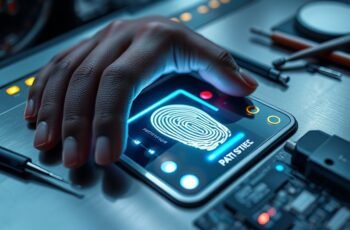
When a fingerprint scanner fails to recognize your fingerprint or shows inconsistent performance, it often signals underlying hardware or software issues that require systematic troubleshooting. We recognize that resolving these problems can be complex, involving factors like cleanliness, driver updates, or environmental conditions. To maintain peak security and functionality, it’s crucial to follow a structured approach. Let’s explore detailed steps to diagnose and fix common problems that might be affecting your device’s performance.
Key Takeaways
- Regularly clean the sensor with a soft, alcohol-dampened cloth to prevent dirt and smudges from affecting recognition.
- Ensure proper finger placement, dry fingers, and consistent scanning techniques for accurate biometric capture.
- Update device drivers and fingerprint software to fix glitches and improve recognition accuracy.
- Check hardware connections, power supply stability, and inspect for physical damage or corrosion.
- Seek professional repair if recognition issues persist after cleaning, software updates, and recalibration.
What Common Fingerprint Scanner Problems Do Users Face?
Despite advancements in fingerprint scanner technology, users frequently encounter a range of issues that hinder ideal performance. Common problems include false rejections during user authentication, where the scanner fails to recognize valid fingerprints, compromising biometric security. Dirt, sweat, or oil buildup on the sensor surface can obstruct accurate readings, leading to inconsistent results. Additionally, sensor hardware malfunctions or misalignments may cause failure to capture fingerprint details properly. Environmental factors like moisture or extreme temperatures can also impair sensor performance. Software-related issues, such as outdated drivers or flawed algorithms, further affect recognition accuracy. These problems disrupt smooth user authentication, reducing system reliability and security. Identifying and resolving these common issues is essential for maintaining peak fingerprint scanner performance and ensuring secure, seamless biometric security.
How Can You Check If Your Fingerprint Scanner Is Properly Cleaned?
To determine if your fingerprint scanner is properly cleaned, start by visually inspecting the sensor surface for visible dirt, smudges, or residue, which can interfere with fingerprint recognition. Effective fingerprint cleaning is crucial for excellent sensor maintenance and accurate readings. Use a soft, lint-free cloth slightly dampened with isopropyl alcohol or a sensor-safe cleaner to gently wipe the surface. To assess cleanliness, consider this table:
| Dirt Presence | Smudges Visible | Residue Detected |
|---|---|---|
| Yes | Yes | Yes |
| Yes | No | Yes |
| No | Yes | No |
| No | No | Yes |
| No | No | No |
Consistent sensor maintenance ensures reliable fingerprint recognition and reduces recognition errors.
Troubleshooting Fingerprint Recognition Errors: Step-by-Step Guide
When troubleshooting fingerprint recognition errors, it’s essential to systematically identify potential causes and implement specific solutions. Biometric authentication relies on accurate fingerprint capture, so issues often stem from sensor misalignment, inadequate fingerprint placement, or software glitches. First, verify that the fingerprint image is clear and consistent across multiple attempts, as poor image quality can trigger recognition failures. Next, check for security vulnerabilities that might interfere with data processing, such as outdated firmware or inconsistent biometric templates. Re-registering fingerprints can mitigate mismatches caused by skin conditions or changes over time. Additionally, guarantee the device’s software and biometric algorithms are up to date, reducing the risk of false rejections and enhancing security. Proper diagnosis and targeted adjustments are key to resolving recognition errors effectively.
What Hardware Issues Might Affect Fingerprint Scanner Performance?
Hardware issues can considerably impact the performance of a fingerprint scanner, and identifying these problems requires careful inspection. Damaged components, such as broken sensor modules or internal circuit faults, can prevent accurate readings, while dirt, smudges, or debris on the sensor surface can obstruct fingerprint capture. Additionally, an inconsistent or faulty power supply may lead to unstable operation or complete failure of the device.
Damaged Scanner Components
Damaged components within a fingerprint scanner can considerably impair its ability to accurately capture and process biometric data, compromising security protocols. Hardware failures or physical damage to key elements disrupt the sensor’s precision and reliability.
- Sensor Array Damage: Cracks or misalignment in the fingerprint sensing surface can distort image capture, leading to erroneous biometric data.
- Circuit Board Failures: Malfunctioning internal circuitry can cause inconsistent power delivery, resulting in intermittent scanner operation.
- Optical Component Damage: Scratches or broken lenses reduce image clarity, impairing fingerprint feature extraction.
- Flexible Cable or Connector Issues: Loose or damaged connections prevent proper data transmission, degrading scanner performance.
Addressing these hardware issues is essential to guarantee the scanner’s integrity, uphold security protocols, and maintain accurate biometric data acquisition.
Dirty or Obstructed Sensor
Have you noticed that your fingerprint scanner occasionally fails to recognize your fingerprint even when your finger is clean? This issue often results from a dirty or obstructed sensor surface, which impairs sensor calibration and causes inaccurate readings. Dust, oil, or residue on the sensor can interfere with the scanner’s ability to capture a precise fingerprint image, leading to failed user authorization attempts. Regularly cleaning the sensor with a soft, lint-free cloth and avoiding contact with liquids or debris can considerably improve performance. Additionally, ensure the sensor’s calibration remains accurate; miscalibration can cause recognition errors even with a clean sensor. Addressing these hardware obstructions maintains ideal fingerprint recognition, reducing false rejections and streamlining user authentication processes.
Faulty Power Supply
Could a faulty power supply be quietly undermining your fingerprint scanner’s performance? Yes, an inconsistent or insufficient power supply can cause hardware malfunctions, including misreads or failure to activate. Troubleshooting tips include inspecting the power source for stability, verifying voltage levels, and ensuring proper grounding.
Key points to contemplate:
- Check if the power supply delivers consistent voltage within specifications.
- Test the power cable and connections for wear or damage.
- Confirm that the power adapter’s wattage matches the scanner’s requirements.
- Use a multimeter to diagnose voltage fluctuations or power surges.
Addressing these issues can prevent performance degradation caused by hardware instability, ensuring reliable fingerprint scanner operation. Proper power supply management is essential for maintaining ideal hardware functionality.
How to Update or Reinstall Fingerprint Scanner Drivers
To update or reinstall your fingerprint scanner drivers, we begin by accessing Device Manager to identify the specific hardware component. Next, we download the latest driver version from the manufacturer’s website to guarantee compatibility and security. Finally, we reinstall the fingerprint software to replace any corrupted or outdated files, optimizing scanner performance.
Access Device Manager
Accessing the Device Manager is a crucial step in updating or reinstalling fingerprint scanner drivers, as it provides direct control over hardware components and their associated software. This allows us to troubleshoot issues related to biometric authentication and guarantee compatibility with security protocols. To do this:
- Open the Start menu, type “Device Manager,” and select it from the results.
- Locate the “Biometric Devices” or “Imaging Devices” section.
- Right-click the fingerprint scanner and choose “Update driver” or “Uninstall device.”
- If reinstalling, restart the system to prompt automatic driver reinstallation, or manually install a driver if needed.
This process guarantees the fingerprint scanner functions correctly, maintains security integrity, and supports biometric authentication processes. Proper driver management is essential for seamless security and device performance.
Download Latest Drivers
After locating the fingerprint scanner in Device Manager, the next step is to obtain the latest drivers to guarantee peak performance and compatibility. Updating drivers ensures that biometric authentication functions smoothly, reducing errors and enhancing security protocols. First, visit the device manufacturer’s official website or trusted driver repositories to download the most recent driver version. Verify the driver is compatible with your operating system and device model. Once downloaded, run the installer with administrative privileges, following on-screen instructions carefully. This process not only optimizes the scanner’s accuracy but also reinforces security measures, preventing vulnerabilities that could compromise biometric data. Regularly updating drivers is essential for maintaining reliable biometric authentication and safeguarding sensitive information against emerging security threats.
Reinstall Fingerprint Software
Reinstalling the fingerprint software becomes necessary when driver updates fail to resolve recognition issues or if the software becomes corrupted. This process helps restore proper fingerprint scanner calibration and guarantees biometric security functions operate correctly. To do this effectively, we recommend:
- Uninstalling the existing fingerprint software through Control Panel or Device Manager
- Downloading the latest version from the manufacturer’s official website
- Running a clean installation, following specific prompts to avoid residual conflicts
- Restarting the system to finalize calibration and biometric security settings
Performing a thorough reinstallation ensures the fingerprint scanner is correctly calibrated, reducing false rejections. This step is vital for maintaining biometric security integrity and maximum device performance, especially after driver conflicts or software corruption.
Why Is My Fingerprint Scanner Not Detecting My Finger?
When your fingerprint scanner fails to detect your fingerprint, the issue often stems from improper sensor contact, dirt accumulation, or hardware malfunctions. In biometric security systems, reliable sensor contact is vital for accurate data capture and effective data encryption. Dirt, oils, or moisture on the scanner surface can obstruct the sensor’s ability to read ridges and valleys in your fingerprint, leading to detection failures. Hardware malfunctions, such as a damaged sensor or loose connections, can also compromise detection accuracy. Ensuring the sensor is clean and properly aligned can mitigate detection issues. Poor contact disrupts the scanning process, impeding biometric security protocols and risking unauthorized access. Regular maintenance and hardware checks are essential to maintain peak fingerprint recognition performance.
How Can Software Glitches Affect Fingerprint Scanner Functionality?
Software glitches can substantially impair the functionality of fingerprint scanners by disrupting communication between the sensor hardware and the operating system. These glitches often stem from software conflicts, where incompatible applications or drivers interfere with proper operation. Firmware updates, if improperly installed or corrupted, can also introduce bugs that impair sensor responsiveness or cause recognition failures. Such issues may result in delayed response times, false rejections, or complete sensor inoperability. To mitigate these problems, it’s vital to:
Software conflicts and corrupted updates can cause fingerprint scanner failures and delays.
- Verify all driver and firmware updates are compatible and checked
- Restart the device after updates to apply changes
- Avoid running conflicting third-party security or biometric software
- Regularly check for and address system errors or corruption
Addressing these software-related factors helps maintain consistent fingerprint scanner performance.
Tips for Improving Fingerprint Recognition Accuracy
Optimizing fingerprint recognition accuracy involves precise control over the conditions and techniques used during enrollment and daily use. To enhance fingerprint security and biometric authentication reliability, ensure fingers are clean, dry, and free of residues before scanning. During enrollment, press firmly but naturally to capture the full fingerprint pattern, avoiding partial or smudged images. Regularly update the scanner’s software to incorporate improvements in recognition algorithms. Use consistent finger placement and avoid rapid, inconsistent scans that can cause false rejections. Additionally, consider re-enrollment if recognition accuracy declines over time, as fingerprints can change due to wear or minor injuries. Proper maintenance, controlled environmental conditions, and accurate finger positioning greatly improve recognition accuracy, reinforcing fingerprint security and making biometric authentication more dependable.
When to Seek Professional Repair for Your Fingerprint Scanner
Identifying the need for professional repair becomes essential when persistent issues extend beyond simple troubleshooting steps, indicating underlying hardware failures or significant calibration problems. When problems persist despite cleaning and recalibrating, and your device’s fingerprint scanner displays inconsistent recognition, it’s time to contemplate expert intervention. Security concerns, such as potential data breaches or compromised biometric data, heighten the urgency for professional assessment. Additionally, issues like persistent false rejections or recognition of unauthorized fingerprints suggest hardware malfunctions. These problems can jeopardize user privacy and compromise device security.
- Recurrent recognition failures despite software updates
- Visible physical damage or corrosion on the scanner
- Calibration errors that resist software adjustments
- Symptoms suggesting hardware malfunction impacting security and privacy
Frequently Asked Questions
Can Environmental Factors Impact Fingerprint Scanner Performance?
Environmental factors like humidity interference can cause moisture buildup, affecting fingerprint accuracy, while electromagnetic disruption from nearby devices can interfere with scanner signals, both considerably impacting performance. We recommend controlling these conditions for ideal fingerprint scanner reliability.
How Often Should I Calibrate My Fingerprint Scanner?
We suggest calibrating your fingerprint scanner every three to six months, considering sensor durability and environmental conditions. Regular calibration guarantees peak accuracy, compensates for wear, and maintains reliable performance amidst usage and environmental fluctuations.
Are There Specific Cleaning Products Recommended for Fingerprint Sensors?
We recommend using gentle, alcohol-free cleaning solutions for sensor maintenance, avoiding harsh chemicals like acetone or abrasives that could damage the sensor’s delicate surface, ensuring precise fingerprint recognition and long-term device performance.
What Security Risks Are Associated With Fingerprint Scanner Malfunctions?
Malfunctions in fingerprint scanners jeopardize security by risking inaccurate biometric data capture, potentially allowing unauthorized access or false authentication. This can compromise sensitive information and undermine trust in biometric security systems.
How Do I Reset My Fingerprint Scanner to Factory Settings?
Think of resetting your fingerprint scanner like recalibrating a finely tuned instrument; access device settings, select “Factory Reset,” then perform a fingerprint sensor calibration and scanner firmware update to restore peak performance and security.
Conclusion
Certainly! Here’s the modified text with alternative words replacing “in conclusion”:
Ultimately, if your fingerprint scanner isn’t performing like a high-tech superhero, it’s probably just in need of some TLC—cleaning, updates, or a quick check of connections. Ignoring these issues could turn your device into a stubborn, uncooperative brick. But don’t worry, with our detailed troubleshooting, you’ll have your scanner functioning flawlessly—faster than you can say “biometric brilliance.” Remember, when all else fails, professional repair is just a call away!