Disclosure: As an Amazon Associate, I earn from qualifying purchases.
Want a fast, reliable way to turn a shoebox of old photos into high-quality digital memories?

Product Overview: Plustek Photo Scanner ePhoto Z300, Scans 4×6 inch Photos in 2 Seconds, Auto crop and deskew with CCD Sensor, Supports Mac and PC
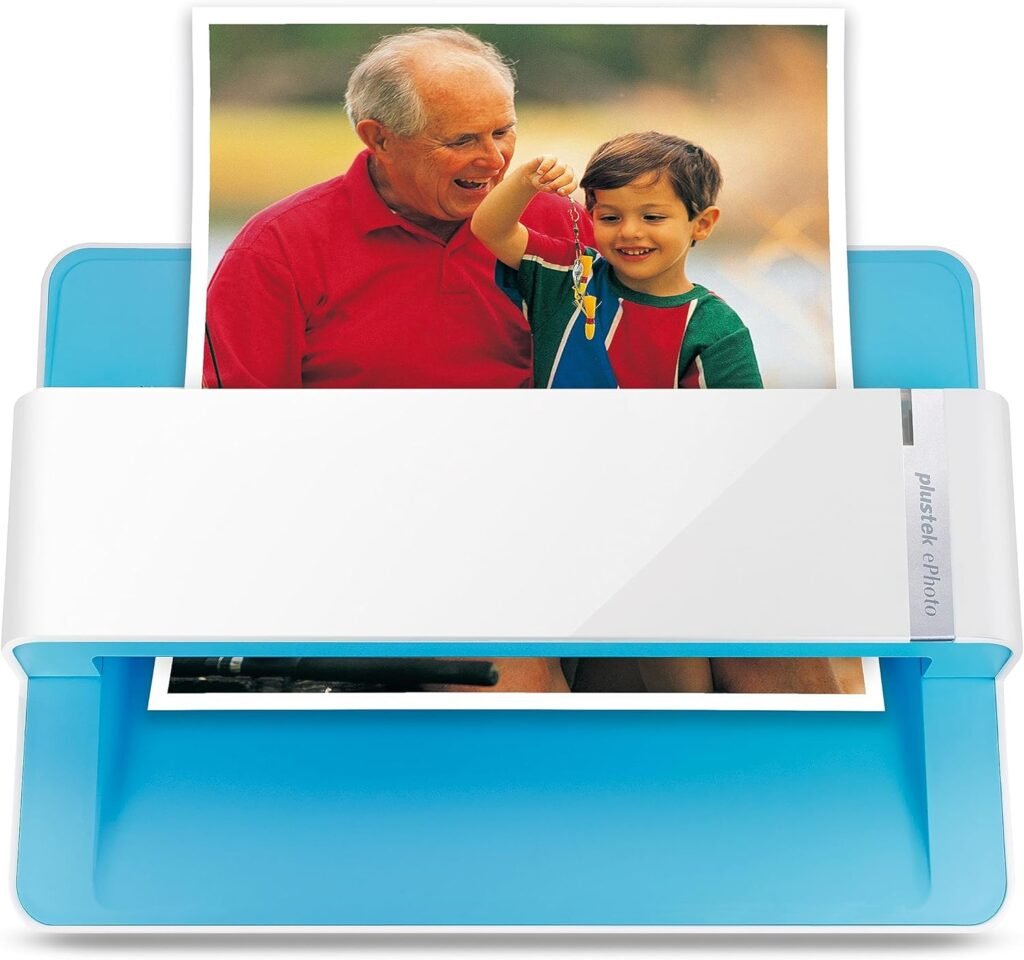
You’ll find the Plustek Photo Scanner ePhoto Z300 aimed squarely at users who want quick, consistent photo scans without the fuss of a flatbed. It’s a sheet-fed photo scanner that supports small and mid-sized prints and promises fast scan times with built-in image enhancement tools. If your priority is speed and convenience for family photos, this is the kind of device that makes bulk scanning feel manageable.
What this scanner is best for
You’ll use this scanner best when you need to digitize small-to-medium prints quickly and with minimal manual adjustments. It’s great for 3×5, 4×6, 5×7, and 8×10 photos, and it handles letter/A4 documents too. If you want to scan hundreds of family photos or physical receipts and documents without juggling a flatbed lid, this model was designed for that workflow.
What it’s not ideal for
You shouldn’t expect it to replace a professional drum scanner or a high-end flatbed for large delicate originals, bound photo albums, or negative/slide work. If you need to scan very large or framed items, or you must preserve extremely fragile originals without any contact, a flatbed or specialized service might suit you better.
Key Specifications (at a glance)
The table below breaks down the most important specs in a compact way so you can compare at a glance. These are the main technical points you’ll want to consider when deciding whether the Z300 fits your needs.
| Feature | Detail |
|---|---|
| Sensor Type | CCD sensor (better color depth and dynamic range than basic CIS) |
| Optical Resolution | Up to 600 dpi (two selectable settings: 300 dpi, 600 dpi) |
| Typical Speed | 2 seconds per 4×6 photo (300 dpi); ~5 seconds per 8×10 photo (300 dpi) |
| Supported Sizes | 3×5, 4×6, 5×7, 8×10 photos; letter and A4 documents |
| Auto Features | Auto crop, auto deskew, auto color/auto exposure |
| Image Enhancement | Built-in restoration tools to enhance faded images |
| File Formats | Common formats supported (JPEG, TIFF, PDF) — check software for exact list |
| OS Compatibility | Windows 7/8/10/11; Mac OS X 10.12–10.15 (download latest drivers/software from Plustek website) |
| Ideal Use Case | Bulk photo digitizing; family albums; quick document capture |
In the Box and First Impressions
You’ll typically find the scanner, a USB cable, a quick-start guide, and any bundled software or registration cards in the box. The unit is compact and upright, so it won’t hog a large portion of your desk. When you unbox it, you’ll likely appreciate the minimal setup: plug in, install the software, and start feeding photos.
Unboxing tips
Make sure you locate and read the quick-start guide for any OS-specific setup instructions. You’ll want to install the latest software or drivers from Plustek’s website rather than relying only on the included CD, especially if you’re on a newer Mac or Windows machine.
Physical design and build quality
The scanner feels lightweight but sturdy enough for regular home use. Its feed slot and output tray are designed for single photo feeding, so you’ll be feeding one photo at a time instead of a bulk feeder. The design prioritizes ease of use over heavy-duty industrial scanning.

Setup and Installation
You’ll find setup is straightforward, but a few small steps make the process smoother. The scanner connects via USB, and the included software handles scanning, basic editing, and photo restoration. If you use a Mac, check Plustek’s website for the latest Mac drivers to ensure compatibility with newer macOS versions.
Installing software and drivers
Install the software provided on the included media if you want, but head to Plustek’s site to download the most recent drivers. This helps avoid compatibility issues and gives you the latest features and bug fixes. On Windows, run the installer as an administrator if you run into permission problems.
First-time configuration
You’ll be prompted to choose default file formats, resolution settings, and save locations. For everyday sharing, 300 dpi JPEG is a great choice. If you plan to archive or print larger reproductions later, choose 600 dpi TIFF for master files.
Scanning Performance and Speed
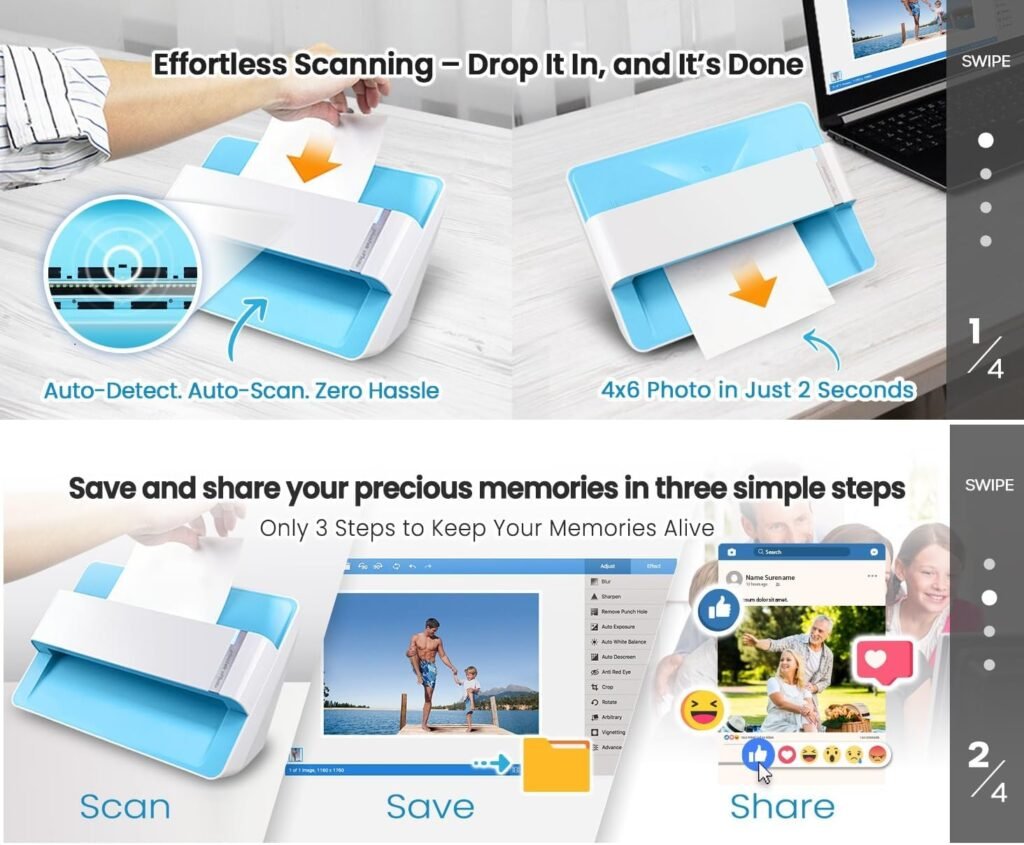
The headline feature here is speed: the Z300 claims 2 seconds for a 4×6 photo at 300 dpi and about 5 seconds for an 8×10 at 300 dpi. In real-world use, you’ll get nearly that performance for simple scans, and the speed will still feel very quick compared to flatbeds.
Real-world scanning throughput
If you’re scanning hundreds of photos, you can realistically process dozens per hour. The manufacturer suggests you can convert roughly 1,000 photos in an afternoon — that’s optimistic but demonstrates how much faster a dedicated feeder can be compared with placing photos on a flatbed individually. Your throughput depends on how much manual cropping or touch-up you choose to do after each scan.
How resolution affects speed
Scanning at 600 dpi naturally takes longer and produces larger files. You’ll balance speed vs. quality: use 300 dpi for casual sharing and social media, and 600 dpi if you plan to archive, print, or do serious restoration work later.
Image Quality: What You Can Expect
You’ll see solid color reproduction and detail thanks to the CCD sensor, which generally offers better color depth and dynamic range than consumer CIS sensors. The Z300 is aimed at delivering pleasing photo scans right out of the box with minimal fuss.
Color and detail
The CCD sensor helps capture richer tones and better highlight/shadow detail, which matters when you’re restoring older photos with faded colors. You can expect good-to-very-good scans for typical prints. Fine grain in very old film-based prints might not be captured like professional scanners, but the results will typically be excellent for digital archiving and sharing.
Restoration and enhancement
The bundled software includes enhancement tools for quickly improving faded photos, adjusting color balance, and removing minor blemishes. You’ll appreciate one-click operations for restoration, though for seriously damaged photos you might want to export to Photoshop or another editor for more granular control.
Software Features and Ease of Use
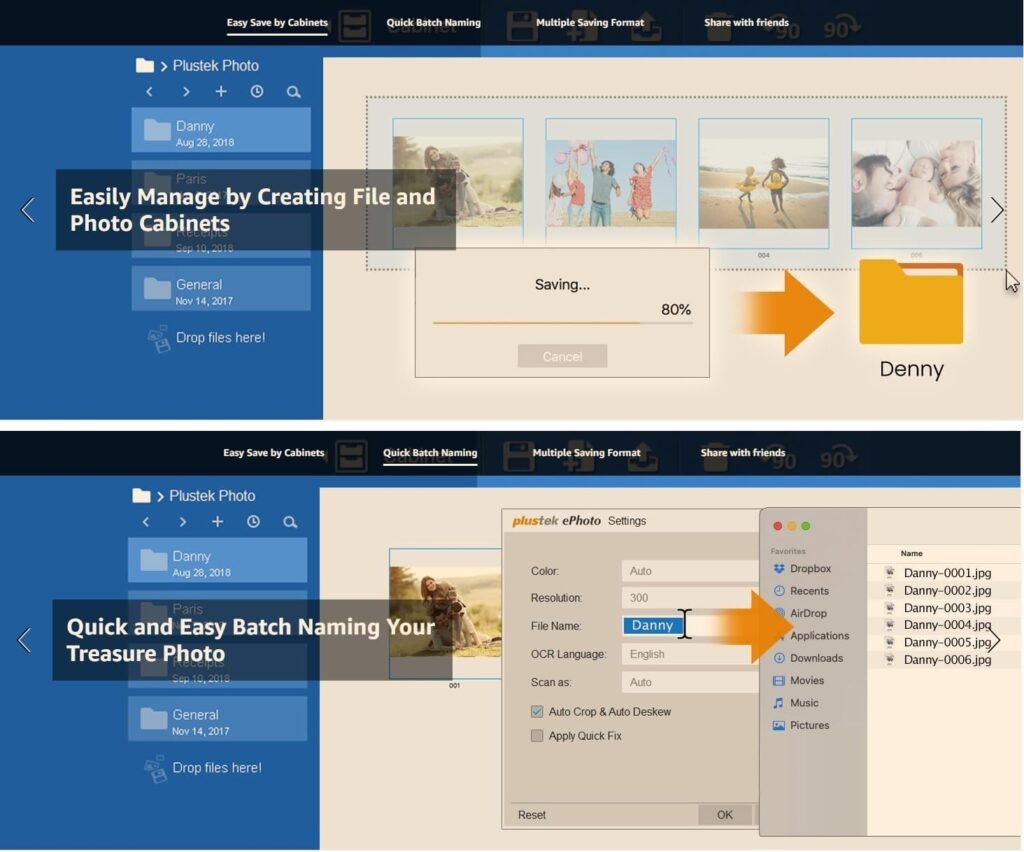
You’ll find that the included software focuses on simplicity, with automated cropping, deskewing, and a set of restoration tools. The goal is to minimize manual setup and let you push photos through quickly while getting usable results.
Auto crop and deskew
Automatic cropping and deskewing save you time by trimming borders and straightening scans automatically. You’ll still have the option to manually adjust if a crop wasn’t perfect, but for the majority of prints this feature is a real time-saver.
Image enhancement tools
The software’s enhancement tools aim to restore faded prints, correct common exposure issues, and reduce minor dust/scratch visibility. You’ll likely use these for quick fixes. If you want the best possible restoration, export the scan in a lossless format (TIFF) and do detailed edits in a dedicated image editor.
Compatibility and Operating Systems
Plustek advertises support for Windows 7/8/10/11 and Mac OS X 10.12–10.15, and you can download the latest drivers and software from the Plustek website. If you’re on a more recent macOS version, check the site and user forums for updated compatibility notes or newer drivers.
OS-specific tips
On Windows, the setup tends to be plug-and-play if you install the latest drivers first. On Mac, you might need to grant security permissions in System Preferences (Security & Privacy) so the scanning application can access files and the connected device.
Mobile and cloud workflows
While the Z300 is a USB-attached desktop scanner rather than a network or Wi-Fi device, you can set up a simple cloud workflow by saving scans to a folder synced with cloud services (Dropbox, Google Drive, iCloud). This makes it easy to share scans across your devices right away.
Scanning Different Photo Sizes and Document Types
The Z300 supports 3×5, 4×6, 5×7, 8×10 photos, and letter/A4 documents. You’ll appreciate its flexibility for both photos and occasional paperwork.
Small prints (3×5, 4×6)
For small prints like 4×6, you’ll get the fastest throughput: 2 seconds per photo at 300 dpi. This is where the scanner shines if your collection consists mostly of wallet or snapshot-sized images.
Medium prints (5×7, 8×10)
You can scan 5×7 and 8×10 as well; expect slightly longer times. The software will automatically detect and crop to the size, but keep an eye on alignment for larger prints, as the feed mechanism is optimized for smaller sizes.
Documents and mixed media
You can scan letter or A4 documents when needed, but the scanner is optimized for photos. Documents with text should scan cleanly and can be saved as PDF for archival or sharing.
Workflow Tips for Bulk Scanning
You’ll save time with a little prep. Organize prints by size and priority, clean them gently, and set your default scanning preferences before you start.
Pre-scan prep
Clean dust from photos with a soft microfiber cloth or a camera brush. Avoid liquid cleaners on fragile prints. Remove severely curled photos or place them under a weight to flatten before feeding.
Batch workflow suggestions
Set your software to save to a designated folder and use a consistent naming scheme (e.g., YYYY-MM-DD_event_###) so you can find files later. If you plan to archive, scan at 600 dpi into TIFF for masters and create 300 dpi JPEGs for sharing.
File Formats and Archival Strategy
You’ll want to choose formats based on what you plan to do with the images. The scanner’s software typically supports JPEG for easy sharing and TIFF for archival, along with PDF for documents.
Choosing resolutions and formats
Use 300 dpi JPEGs for everyday sharing and quick backups. For archiving or future editing, choose 600 dpi TIFF to preserve as much detail as possible. Keep a smaller JPEG version for mobile use and social sharing while holding the TIFF as your master.
Storage and backup
After scanning, back up your images to at least two places: an external hard drive and a cloud service. If you’re scanning a large collection, consider using an organized folder hierarchy and periodically creating checksums to verify file integrity.
Maintenance and Care
You’ll keep the Z300 working smoothly with minimal maintenance. Occasional cleaning and a gentle touch are all that’s typically required.
Cleaning the feed path and rollers
Dust and small particles can accumulate in the feed area. Use canned air and a lint-free cloth to remove debris periodically. If your scanner has removable rollers, check the manual for cleaning instructions to avoid damage.
Firmware and software updates
Check Plustek’s website periodically for firmware and software updates. These updates can improve compatibility and fix bugs. Staying up to date helps avoid driver conflicts, especially after major OS updates.
Troubleshooting Common Issues
You’ll likely encounter only a few typical issues such as driver conflicts, misfeeds, or software crashes. Most of these have simple fixes.
Driver and software conflicts
If the scanner isn’t recognized, reinstall the driver and restart your computer. On macOS, check Security & Privacy settings to confirm the app has permission to access connected devices and files.
Misfeeds or jams
If a photo misfeeds, turn off the scanner, gently remove the print, and clear any debris. Feed photos one at a time and avoid feeding prints with sticky tape, extreme curl, or residual adhesive.
Poor scan quality
If scans look faded or color-shifted, make sure you selected the appropriate profile and resolution, and try running an automatic enhancement. If problems persist, scan a sample and test different settings (300 vs. 600 dpi) to isolate the issue.
Pros and Cons
You’ll get a clear picture here of the strengths and trade-offs to help you decide whether this scanner fits your use case.
Pros
- Fast scanning for small photos (2 seconds for 4×6 at 300 dpi).
- CCD sensor delivers good color and dynamic range for photo work.
- Auto crop, deskew, and one-click enhancement speed up workflow.
- Compact design suitable for home use and easy storage.
- Supports both Mac and Windows (drivers downloadable from Plustek).
Cons
- Single-feed design isn’t suited for bound pages or fragile originals.
- 600 dpi scans produce large files and slower throughput.
- Mac support may require checking Plustek’s site for drivers on newer macOS versions.
- Not suitable for negatives/slide scanning without additional equipment.
How the Z300 Compares to Other Options
If you’re deciding between a flatbed, other sheet-fed photo scanners, or professional scanning services, your choice depends on priorities like speed, quality, and handling of delicate items.
vs. flatbed scanners
You’ll save time with the Z300 since you’re not lifting a lid and aligning each photo individually. A flatbed, however, is better for fragile items, bound pages, and glass-framed photos.
vs. high-end dedicated photo scanners (e.g., Epson FastFoto)
High-end photo scanners like Epson’s FastFoto series might offer faster batch feed and extra features such as continuous multi-photo feeding or higher resolution OCR/document handling. The Z300 is a strong value choice for home users who want fast, reliable performance without professional price tags.
When to choose a service instead
If you have extremely fragile, irreplaceable, or very large prints, a professional archival service may be better. You’ll get higher-level handling and possibly true archival scanning with color calibration.
Practical Use Cases and Recommendations
You’ll get the most from the Z300 if you plan a realistic workflow and match settings to goals. Here are common scenarios and what to do.
Family photo archive
Scan at 600 dpi TIFF for master files and create 300 dpi JPEGs for sharing or prints. Label files immediately or use software to add metadata for easier searching later.
Quick sharing and social media
Scan at 300 dpi JPEG and run automatic enhancement. You’ll have small files ready to share on social networks or via email without extra processing.
Document capture
Use the scanner for letter/A4 documents when you need a quick digital copy. Save as PDF for organized records and backups.
Final Thoughts and Recommendation
If you want a friendly, efficient tool for digitizing piles of small-to-medium photographs quickly, you’ll find the Plustek Photo Scanner ePhoto Z300 an excellent match. It’s particularly appealing if you value speed, straightforward software enhancements, and a compact footprint rather than the absolute highest-end archival scanning quality.
You’ll get strong color reproduction from the CCD sensor, time-saving auto crop and deskew features, and a workflow that allows you to turn a stack of physical photos into organized digital files without much fuss. For most families and casual archivists, the Z300 offers a balanced mix of performance, value, and ease of use.
If your priority is professional-level archival scanning for large or fragile originals, consider a flatbed or professional service. But if your goal is to digitize family photos efficiently and create digital backups and shareable images within a single afternoon or weekend, this scanner will likely become a reliable part of your setup.